Watch on a bigger screen
This is the obvious one, but it's worth saying anyway. Movies and live channels look noticeably better on a monitor than a phone, especially if you're watching with other people.
For Windows & Mac
If you spend a lot of time at your desk, watching movies or live TV on a small phone screen isn't always the move. That's usually the point where people start looking for a way to run Netfly on their PC instead. The good news is it's possible, it just works a little differently than installing a regular Windows program since Netfly wasn't originally built for desktop.
⇩ Download Netfly for PC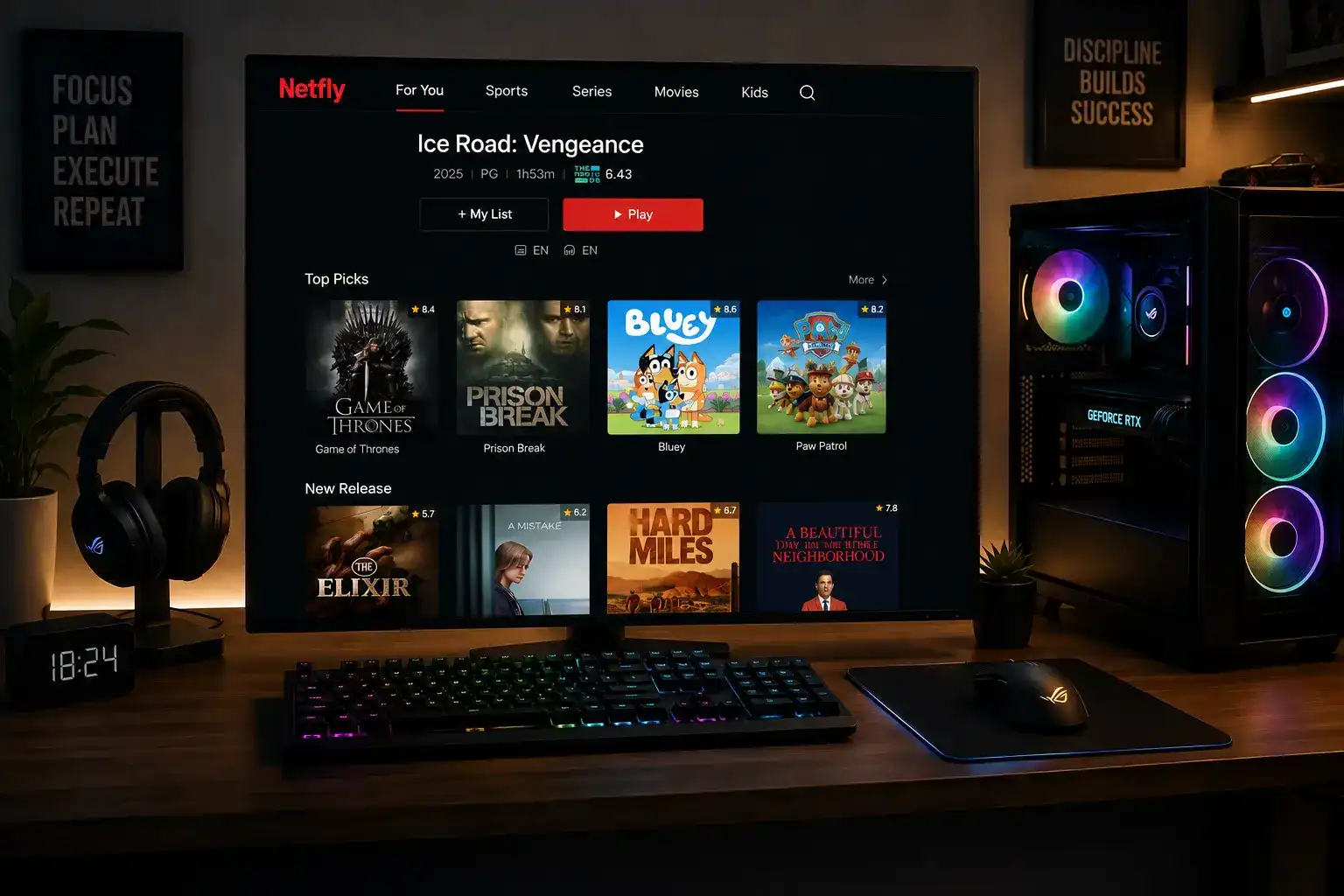
Overview
Netfly for PC isn't a separate desktop program built from scratch. It's the same Android app running on your computer through an emulator, which is basically software that lets your PC act like an Android device. Once that's set up, Netfly runs on your screen just like it would on a phone, only bigger and controlled with a mouse and keyboard instead of your thumb.
This might sound like extra work compared to just downloading a regular app, and it is a bit of an extra step, but it opens up a lot. You get the full library of movies, series, live TV channels, and sports content on a proper monitor, which makes a real difference if you're used to squinting at a phone screen during a match or a movie night.
What you get
The features carry over from the mobile version, but a few of them work even better once you're on a bigger screen with a stable connection.
This is the obvious one, but it's worth saying anyway. Movies and live channels look noticeably better on a monitor than a phone, especially if you're watching with other people.
Just like on mobile, you can save content ahead of time and watch it later without needing an active connection. On a PC this is less about spotty signal and more about saving bandwidth.
Desktop and laptop internet connections tend to be faster and steadier than mobile data, so you're more likely to get consistent Ultra-HD playback without the stream dropping in quality.
Whatever you save to your watchlist carries over across devices if you're signed into the same profile, so switching from your phone to your PC doesn't mean starting your search over.
Same as the mobile app — no ads breaking into your show and no pop ups getting in the way while you browse. You open it, you pick something, you watch it.
Before you install
Before setting anything up, it's worth checking if your computer can actually handle running an Android emulator smoothly. If your PC is older or running low on RAM, the emulator itself might feel sluggish even before you open Netfly.
| Requirement | Details |
|---|---|
| Operating System | Windows 10 or 11 (64-bit) |
| RAM | 4GB minimum, 8GB recommended |
| Storage | At least 5GB free |
| Processor | Intel or AMD processor with virtualization support |
| Internet | Stable broadband connection |
Good to know
There isn't a native Windows version of Netfly, and there likely won't be one anytime soon since the app is built around Android. That said, this doesn't stop you from using it on a computer — it just means you're going through an emulator rather than a direct install like you would with most desktop software.
This setup is actually pretty common for apps in this space. A lot of Android only apps end up on PC this same way, through emulators like BlueStacks or NoxPlayer, so if you've done this before with another app, the process for Netfly won't feel unfamiliar.
Get started
Getting Netfly running on your computer takes a few more steps than a typical Windows install, but none of them are particularly difficult.
Download and install an Android emulator on your PC. BlueStacks and NoxPlayer are two of the more reliable options and both are free.
Open the emulator once it's installed and let it finish setting up. This can take a few minutes the first time.
Inside the emulator, open its built-in browser and go to the official Netfly download page, or download the APK on your regular browser first and then drag the file into the emulator window.
Once the APK is inside the emulator, tap or click it to begin installation, the same way you would on an actual Android phone.
After installation finishes, you'll find the Netfly icon on the emulator's home screen. Open it from there just like any other app.
If you're not sure which emulator to pick, BlueStacks tends to be the more beginner friendly option, while NoxPlayer is a bit lighter on system resources if your PC isn't especially powerful.
Fixes
Running an app through an emulator can introduce a few quirks that you wouldn't normally run into on a phone. Here's how to handle the common ones.
This usually comes down to available RAM. Close other programs running in the background before opening the emulator, and if your PC has less than 8GB of RAM, consider lowering the emulator's graphics settings.
Make sure you're downloading the correct APK file and that it finished downloading completely before trying to install it. A partial download is one of the more common reasons installation fails.
Check the emulator's display settings first, since some default configurations aren't optimized for video playback. Switching the emulator's graphics engine mode often smooths this out.
Restart the emulator completely rather than just closing and reopening Netfly. A full restart clears up most launch issues that show up right after a fresh install.
Check that your PC's audio output is actually set to your speakers or headphones and not muted at the system level — a surprisingly common cause when sound doesn't work inside an emulator.
Questions
Yes, there's no cost involved, whether you're running it through BlueStacks, NoxPlayer, or another emulator.
Not really. A mid range PC from the last several years should handle it fine, as long as you meet the minimum RAM and storage listed above.
Both BlueStacks and NoxPlayer work well. BlueStacks is a bit more polished for beginners, while NoxPlayer runs lighter if your PC has limited resources.
Yes, most Android emulators also have Mac versions, so the same general process applies, just with a Mac compatible emulator instead.
As long as you're signed into the same profile on both, your watchlist and viewing history should carry over without any extra setup.